
Four Levels of Email Drafting Automation: Recipes and When to Hire
Four Levels of Email Drafting Automation: Recipes and When to Hire
Start with AI-assisted drafting and human review. It is the fastest, lowest-risk entry point for most inboxes. If your volume, integrations, or compliance needs outgrow templates and off-the-shelf assistants, a custom automated workflow built for your systems becomes the better call. Weigh privacy, sending permissions, and how much human oversight you want before committing either way.
TL;DR:
- Custom automated workflows are more suitable than off-the-shelf tools when your email volume, integrations, or compliance needs are complex or high-stakes.
- AI drafting tools excel for repeatable, low-ambiguity email types, but are risky if used to automate emotionally sensitive or legal messages without human oversight.
- Building effective email automation typically involves layered approaches, starting with templates and progressing to rule-based flows or AI-assisted drafts over days or weeks.
- Rapid deployment from simple templates to integrated, custom systems is feasible within a few weeks, especially with a review layer and adherence to guardrails like response monitoring.
- Human review remains essential for high-risk messages, with vendors recommended to provide clear limits and export options to prevent costly mistakes.
Table of Contents
- What Does Email Drafting Automation Actually Do?
- What Are the Levels of Email Automation?
- How Do You Choose Between a Tool, an In-House Build, and Hiring a Developer?
- How Do You Set Up Email Automation Step by Step?
- What Automation Recipes Actually Work in Practice?
- What Does a Real Rapid-Build Automation Project Look Like?
- Where Conventional Automation Advice Falls Short
- Get a Custom Email Automation Build That Fits Your Systems
- Sources
What Does Email Drafting Automation Actually Do?
Email drafting automation reads incoming messages and produces a ready-to-send (or ready-to-review) reply, follow-up, or summary without you starting from a blank screen. That’s the plain-language version. The industry term you’ll see in vendor documentation is “AI email assistant” or “conversational email automation,” and it covers a spectrum from a Gmail canned response to a full agent that updates your CRM before it replies.
At its core, the technology handles four jobs: drafting replies from context, generating follow-ups on a schedule, triaging messages into categories, and summarizing long threads so you don’t have to scroll. Microsoft’s Copilot in Outlook, for example, can draft and edit emails from a plain instruction like “draft a reply” and adjust tone and length on request, though which features you get depends on your Microsoft 365 subscription.
The business case is straightforward once you’ve lived with a messy inbox for a quarter:
- Time back. Repetitive replies (scheduling, pricing questions, status updates) stop eating into the hours you’d rather spend on actual client work.
- Consistency. A drafted response pulls from the same tone and facts every time, instead of whatever you can remember at 4:45 PM.
- Faster follow-through. Leads and support tickets get a response inside minutes, not whenever someone finally checks the inbox.
- Fewer manual errors. Copy-paste mistakes and forgotten attachments happen less often when a system assembles the draft.
Setup effort is often smaller than people expect. Native features can go live in under 30 minutes, while a full AI assistant pilot typically takes 30 to 60 minutes to connect and test.
Automation backfires, though, when it’s pointed at messages that need judgment. A drafted apology to an angry client, a legal disclosure, or a negotiation email sent on autopilot can do more damage than the time it saved. The tools work best on repeatable, low-ambiguity email types, not the ones where tone and nuance carry real weight.
What Are the Levels of Email Automation?
Not every business needs the same amount of automation, and jumping straight to autonomous agents when you really just need better templates wastes money and creates risk. Four levels cover almost every real-world setup.
- Native autoresponders. Built into Gmail and Outlook already. Gmail’s Templates feature paired with Filters lets you save a reply and trigger it automatically; Outlook does the same with saved
.ofttemplates and Rules that reply using a template. Setup takes minutes, cost is zero, and the ceiling is low: no personalization beyond mail-merge fields, no reading comprehension. - Rule-based tools. A trigger fires (new email, keyword match, sender domain) and a workflow tool like Zapier or Power Automate assembles a response from a template plus captured metadata. Power Automate can send emails through Microsoft 365 Outlook and save message content straight to SharePoint, which makes it a solid low-code option if your business already runs on Microsoft 365. Setup runs 30 minutes to two hours depending on how many branches the flow needs.
- AI drafting assistants. This is where things get genuinely useful. Tools in this category read the actual content of an incoming email and generate a contextual draft without a prewritten template behind it, distinguishing them clearly from rule-based tools that only match keywords. Some, like Demi’s email assistant, add features such as inbox prioritization and learning from your edits over time. Most run in draft-only mode by default, which means a human still hits send.
- Autonomous agent workflows. The far end of the spectrum. Agent-style platforms connect to external systems, CRMs, order platforms, inventory tools, and can take actions before replying, checking stock, updating a record, placing an order, as some agent builders demonstrate. This level requires real engineering work to wire up safely, but it’s also the only level that can fully close a workflow loop without a person in the middle.
A homogeneous support inbox (mostly the same three or four question types) tolerates higher autonomy sooner. A mixed inbox, sales, support, partnerships, and internal requests all landing in one place, needs drafting-plus-review for longer, simply because the range of situations is wider and the cost of a wrong autonomous reply is higher.
How Do You Choose Between a Tool, an In-House Build, and Hiring a Developer?
The right choice depends less on budget and more on how your inbox behaves. Run through this checklist before you sign up for anything or brief a developer.
- Inbox mix. Is it one repeatable question type, or ten different departments funneling into one address?
- Data residency. Does your industry (health, legal, finance) require email content to stay within a specific jurisdiction?
- Integration needs. Does the workflow need to touch your CRM, calendar, or billing system, or is it self-contained?
- Human-review model. Draft-only, approve-and-send, or fully autonomous, and who signs off on that decision internally?
- Audit logs. Can you see what the system drafted, edited, and sent, six months from now, if a client disputes a message?
- SLA and support. If the automation breaks at 7 AM on a Monday, who fixes it and how fast?
- Cost bands. Are you paying per seat, per email, or a fixed project price?
When you’re interviewing a vendor or scoping an internal build, ask directly: “What happens if the AI drafts something factually wrong?” and “Can I export every sent message with a timestamp and edit history?” Vague answers to either question are a red flag.
Timelines generally fall into three bands. Quick wins with templates, filters, and canned replies take a short time. Mid-level rule-based flows built in Zapier or Power Automate require a few days after mapping triggers. Custom builds that integrate systems and include a review interface typically take several weeks, depending on complexity.
Pro Tip: Ask any AI email vendor for their sending-limit and human-review defaults in writing before you connect it to a live inbox. Default-on autosend is the single fastest way to send an embarrassing reply to a client at scale.
The clearest guardrail across every guide on this topic: never skip human review for anything higher-stakes than an acknowledgement or a scheduling reply. Enterprise integration guidance from Tekkr is blunt about it, monitoring and opt-in send controls exist because unsupervised drafting introduces mistakes and, occasionally, policy violations nobody caught until it was too late.
How Do You Set Up Email Automation Step by Step?
You don’t need to pick one path and commit forever. Most businesses layer these, starting simple and adding complexity only where it earns its keep.
Quick wins (same afternoon):
- In Gmail, turn on Templates under Settings, save your three most common replies, then build a Filter that matches incoming keywords and applies the template automatically.
- In Outlook, save a message as a
.ofttemplate, then create a Rule that replies using that template when a condition matches (sender, subject line, keyword). - Audit your last 100 sent emails and flag which ones are genuinely repetitive; that list becomes your first template set.
Rule-based flow (a few days):
A typical build follows trigger, parse, draft, notify. A new email lands, a tool like Power Automate extracts the sender, subject, and key phrases, assembles a draft from a template with those variables filled in, and notifies the assigned team member to review before sending. This pattern works well for anything with predictable structure, invoice queries, appointment requests, standard onboarding emails.
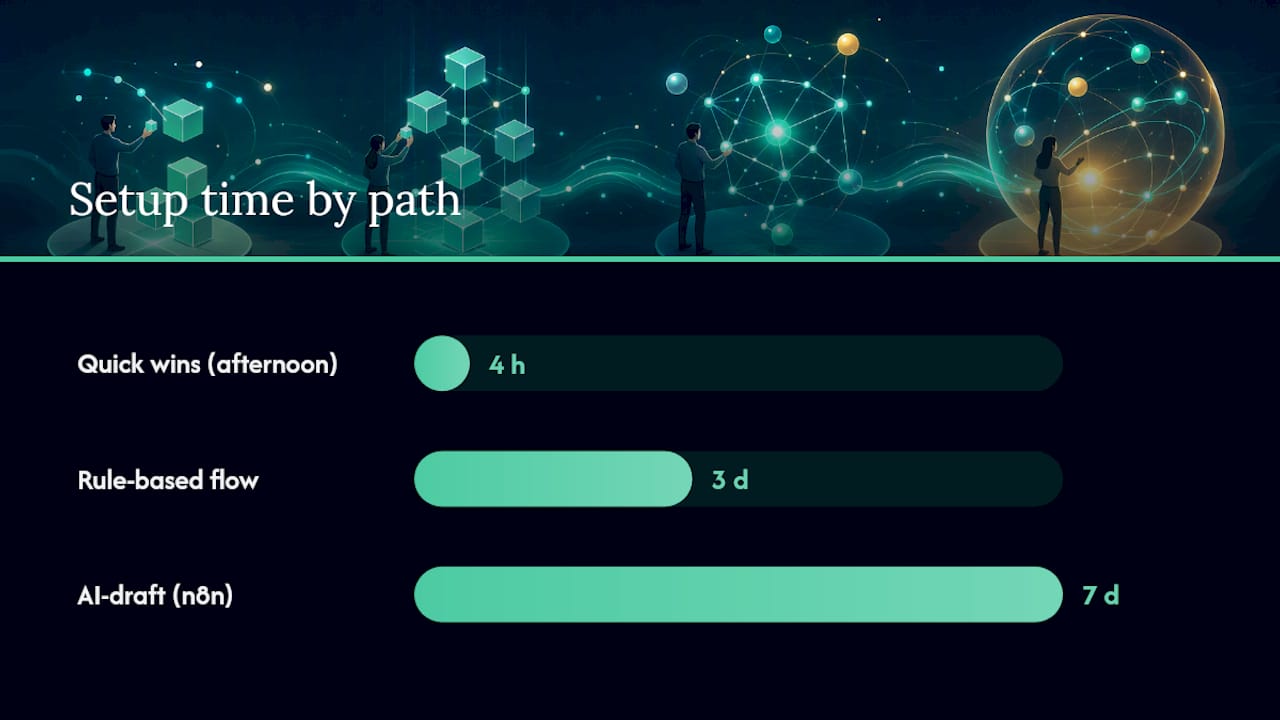
AI-draft flow with n8n (a week, roughly):
For something closer to a true email generation software setup, an n8n workflow commonly looks like this:
- An IMAP or Gmail trigger node watches the inbox for new messages.
- The message content passes to an AI model node, which drafts a contextual reply based on the email’s actual text.
- The draft saves back to the mailbox as an unsent draft, never auto-sent.
- A human reviewer opens the draft, edits if needed, and sends.
- Optionally, a scheduling step delays send time to business hours.
This flow puts a person in the loop by design, and that’s a feature, not a limitation. It’s the version most businesses should run for the first 60 to 90 days of any automation project.
Rollout checklist regardless of which path you pick:
- Pilot on one email category first, acknowledgements or scheduling replies are the safest starting point.
- Track a small set of metrics from day one, don’t wait until month two to start measuring.
- Set explicit guardrails: sending limits, categories excluded from automation, an escalation path for anything the system flags as uncertain.
- Keep a rollback plan, know exactly how to turn a rule or AI draft flow off without losing your original template library.
This staged approach, low-risk categories first, mirrors what best-practice guidance from Tekkr recommends for any AI rollout inside an existing business system.
What Automation Recipes Actually Work in Practice?
Three recipes cover the majority of requests we hear from businesses trying to automate emails without overengineering the first attempt.
Sales follow-up sequence. Trigger: a new lead fills a form or a deal stage changes in your CRM. The system pulls personalization tokens (first name, company, product interest) and sends a first follow-up within 15 minutes, a second at day 3 if no reply, and a third at day 7 with a different angle. The cadence matters more than the copy, most replies come from the second or third touch, not the first.
Support triage recipe. Classify the incoming message by keyword or intent, auto-acknowledge with a “we’ve got this” message within seconds, draft a resolution based on your knowledge base if the category matches a known issue, and escalate to a human immediately if it doesn’t. This recipe is where AI drafting assistants tend to outperform rule-based tools, because real support questions rarely match a template exactly.
Meeting scheduling recipe. Detect scheduling intent in the message (“can we find time,” “are you free”), check calendar availability through an integration, propose two or three specific time slots in the reply draft, and book automatically once the recipient confirms.
Track these metrics no matter which recipe you deploy:
- Response time (how fast the first reply lands)
- Reply rate (how often recipients engage back)
- Escalation rate (how often the AI hands off to a human)
- Time saved per week, measured honestly, not estimated
For more built-out automation patterns across departments beyond email, this roundup of workflow automation use cases is worth a look if you’re mapping a broader rollout.
What Does a Real Rapid-Build Automation Project Look Like?
A Melbourne-based professional services firm came to Zatersio buried in repetitive client email threads, status updates, appointment confirmations, and document requests that ate a huge chunk of admin time every week. Rather than a generic AI assistant, Zatersio built a workflow tailored to their existing systems: triggers tied to their booking software, a human-review interface so no message went out unchecked, and Australian data residency to keep client information compliant. The result, detailed in the full case study, was more than 20 hours a week handed back to the team.
A typical rapid build like this includes trigger logic matched to the client’s actual tools, integrations into whatever CRM or booking system already runs the business, and a review layer that keeps a person in control of anything sensitive. For eligible software projects, the R&D Tax Incentive can offset a meaningful share of development cost, and fixed pricing means the business knows the total investment before work starts, not after.
Where Conventional Automation Advice Falls Short
Most guides treat email automation as a binary: either you use an off-the-shelf AI assistant, or you don’t automate at all. That framing misses the real decision, which is about inbox shape, not tool preference. A homogeneous support queue and a mixed founder inbox need completely different levels of autonomy, and no single tool serves both well.
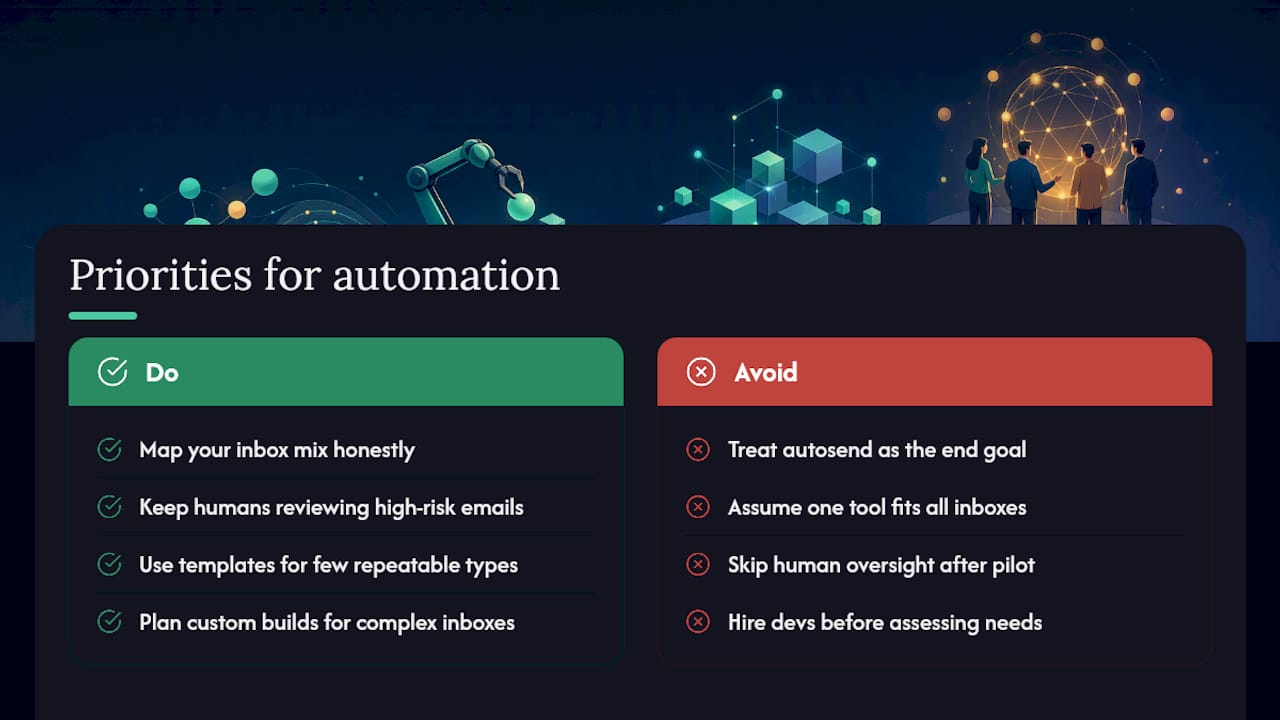
The other gap in conventional advice is underselling human review. Plenty of vendors market autosend as the goal, as if oversight is a training-wheels phase you graduate out of. In practice, the businesses getting the most value keep a human in the loop on anything outside narrow, low-risk categories, indefinitely, not just during a pilot.
What should you prioritize first? Map your inbox mix honestly before you touch a tool. A business with three repeatable email types needs an afternoon with Gmail templates, not a developer. A business juggling five departments, a CRM, and a compliance requirement needs a conversation about a custom build long before it needs another SaaS subscription.
— Lakitha
Get a Custom Email Automation Build That Fits Your Systems
If you’ve worked through the levels above and landed on “our inbox mix, integrations, or compliance needs are too specific for an off-the-shelf assistant,” that’s exactly where Zatersio’s rapid MVP and automation builds come in. Instead of bending your workflow to fit a generic tool’s limitations, Zatersio’s engineering team builds the drafting, triage, and follow-up logic around the systems you already use, CRM, booking software, or internal databases, with a human-review layer and Australian data residency built in from day one.
Fixed pricing means you know the total cost before the build starts, and eligible projects can offset development costs through the R&D Tax Incentive. Working software typically ships in under two weeks rather than months of back-and-forth with a generalist agency. If your email workload has outgrown templates and Zapier flows, start with the workflow automation services page to scope what a custom build for your inbox would actually look like.
Sources
- Copilot in Outlook — AI email assistant features
- Email with Power Automate — Microsoft Learn module
- How to automate email responses — Lindy blog
- Send automated emails in workflows — HubSpot Knowledge Base