
Start with Rules, Not AI: Shared Inbox Automation for Australian Teams
Start with Rules, Not AI: Shared Inbox Automation for Australian Teams
Start with rule-based filters and workflow engines, not AI. Most teams should build in Microsoft 365 with Power Automate or Google Workspace Collaborative Inbox first, then layer AI triage once volume or complexity outgrows manual routing. Before any of it goes live, lock down permissions and data residency. Get the plumbing right and the smart features become a lot easier to trust.
TL;DR:
- Building simple rules and auto-responders first ensures basic inbox management and cost efficiency before scaling to AI-driven triage.
- Proper permissions and data residency settings are critical to prevent security issues and ensure smooth automation deployment.
- Escalation triggers and SLA alerts should focus on unassigned messages and repeated SLA misses to improve response times effectively.
- Hybrid solutions using delegated access or forwarding work for Google Collaborative Inboxes but lack AI capabilities, requiring manual workarounds.
- Automating beyond basic workflows with AI requires careful governance and often custom development to manage volume, complexity, and data residency demands.
Table of Contents
- What Are the Levels of Shared Inbox Automation?
- How Do You Connect a Microsoft 365 Shared Mailbox to Power Automate?
- How Does Google Workspace Collaborative Inbox Work?
- Designing Routing, Ownership, and SLA Rules That Hold Up
- What Governance and Data Residency Steps Matter Most?
- What Metrics Actually Show Whether Automation Is Working?
- What Does Automating a Shared Inbox Look Like in Practice?
- DIY vs. Commissioning a Rapid Build
- Get a Working Automation Pilot Running in Weeks, Not Quarters
- Sources
- FAQ
What Are the Levels of Shared Inbox Automation?
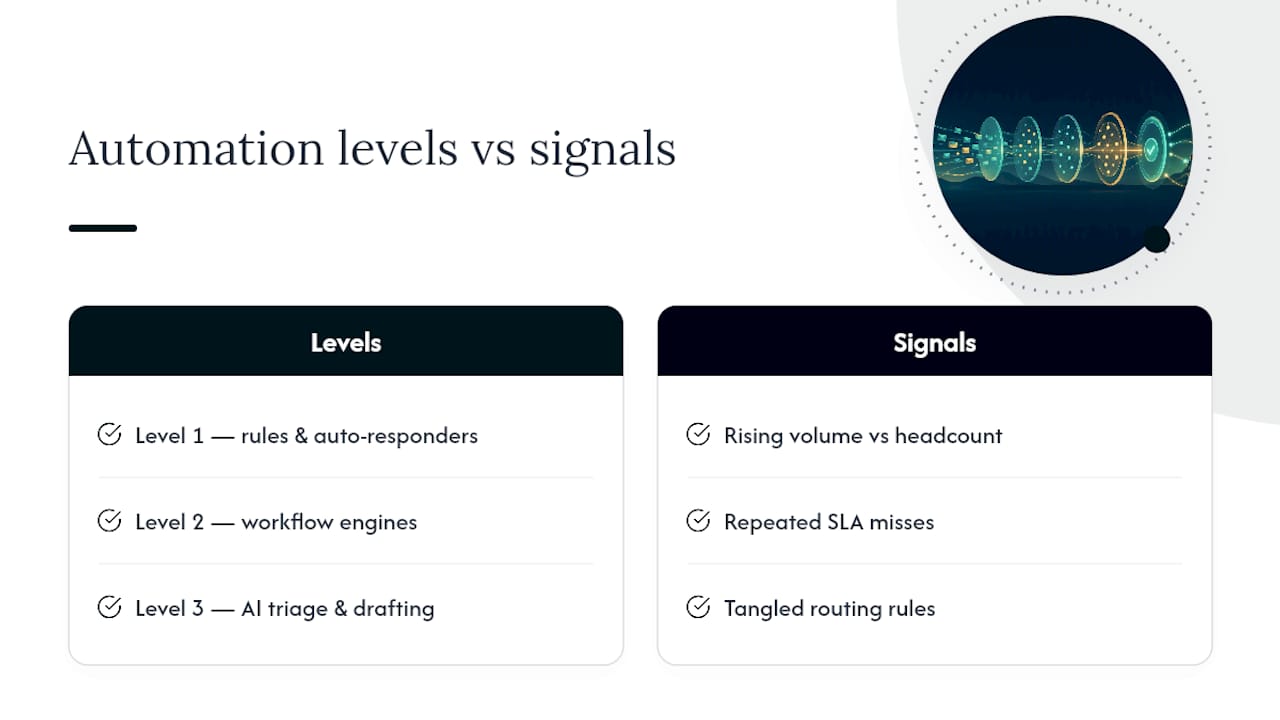
Shared inbox automation isn’t one thing. It’s a ladder, and most teams climb it faster than they expect once the first rung proves itself.
Level 1: rules and auto-responders. Filters, keyword tags, and canned auto-replies cost almost nothing to set up and catch the obvious cases: after-hours acknowledgments, spam triage, subject-line sorting into folders.
Level 2: workflow engines. Tools like Microsoft Power Automate connect the inbox to other apps. This is where you get assignments, multi-step actions, and SLA timers, not just sorting.
Level 3: AI-driven triage and drafting. Intent classification, priority scoring, and context-aware draft replies. This level does the most work but also introduces the most governance questions, since AI is now writing or deciding on the team’s behalf.
Three signals tell you it’s time to move up: rising volume that outpaces headcount, repeated SLA misses on the same categories, and routing rules so tangled that they become difficult to manage.
Pro Tip: Don’t skip straight to AI because it sounds impressive. A messy Level 1 setup will produce messy AI training data and messy results.
How Do You Connect a Microsoft 365 Shared Mailbox to Power Automate?
Permissions decide whether this works on day one or eats your afternoon. Full access lets a flow read and act on the mailbox directly; delegated access is narrower and safer for sensitive queues; connector-based access depends on the specific integration you’re using. Pick the model that matches your compliance needs before you build anything.
- Grant the right access. Add the flow’s service account or your own account as full access on the shared mailbox, not just “send as.”
- Set your trigger. Common ones include “when a new email arrives,” “when an email is flagged,” and filters on subject line or body content.
- Build the action chain. A typical recipe: assign the message to an owner, spin up a Planner or To Do task, fire an auto-reply template, and escalate automatically if nobody touches it within a set number of hours.
- Test with a real message before rolling it out. Connector identity mismatches are the most common failure point.
Community threads on Power Automate and shared mailbox connectors document this exact problem: the flow authenticates as the wrong identity, and the trigger silently stops firing. Microsoft’s own connector guidance is worth checking whenever a flow that worked last month suddenly goes quiet, since connector behavior does change over time.
How Does Google Workspace Collaborative Inbox Work?
Collaborative Inbox turns a Google Group into a shared queue where members can take, assign, and resolve conversations without stepping on each other. Turning it on requires enabling conversation history and assigning the right metadata-moderation permissions, a step Google documents in its Collaborative Inbox setup guide.
Once it’s live, members can:
- Take or assign a conversation to a specific teammate
- Mark threads complete or flag duplicates
- Search and filter by assignee or resolution status
The gap shows up fast: Collaborative Inbox has no built-in AI triage, drafting, or complex routing logic. Teams work around this with delegated mailbox accounts or forwarding rules paired with labels, though delegated access tends to get cumbersome once you’re managing hundreds of users rather than a handful.
Designing Routing, Ownership, and SLA Rules That Hold Up
Good workflow design comes down to four decisions, made deliberately rather than by default.
- Choose a routing pattern. Round-robin spreads load evenly; skill-based routing sends technical questions to technical people; keyword or tag-based routing catches anything predictable.
- Pick an ownership model. “Take” lets anyone claim a thread; explicit assignment pushes ownership from a manager or bot; full ticket creation hands the message to a separate system entirely. Each changes how handovers feel to the customer.
- Prevent collisions. Status flags, timestamped assignment notes, and visible internal comments stop two people from answering the same email.
- Wire up SLA alerts. Track time-to-first-response and auto-escalate anything unassigned past a threshold, say 30 or 60 minutes.
Vendor category research on shared inbox platforms consistently points to AI-assisted routing as the direction the market is heading, though the exact lift varies by team and volume. What doesn’t vary: unassigned messages are where SLAs die quietest, so escalation triggers deserve more attention than they usually get.
What Governance and Data Residency Steps Matter Most?
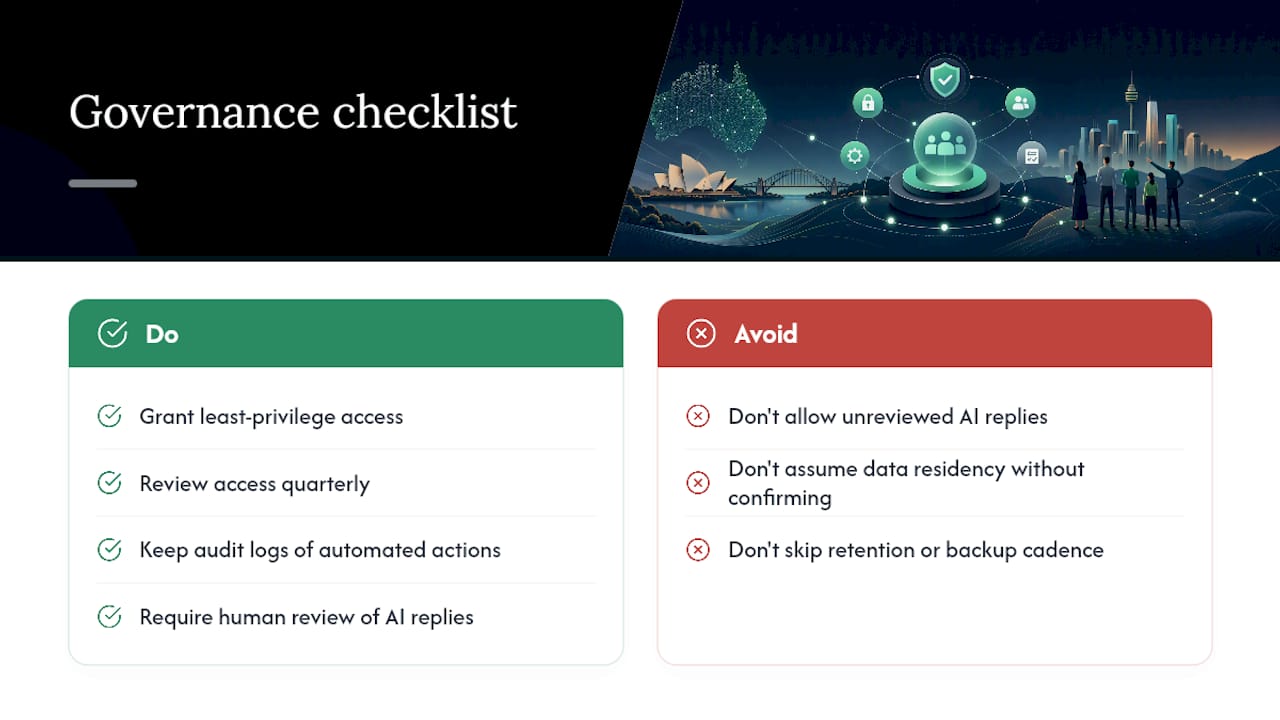
Automation without governance is how a shared inbox turns into a liability. Four things belong on every rollout checklist:
Grant least-privilege access and review it quarterly, not “whenever someone remembers.” Keep audit logs on every automated action, and put a human in the loop before AI-drafted replies go out unreviewed. If your business needs data to stay on infrastructure resident in Australia, confirm that at the platform and connector level before go-live, not after. Set a retention and backup cadence, and write down who reviews access and how often.
What Metrics Actually Show Whether Automation Is Working?
Five numbers tell you almost everything: first response time, resolution time, duplicate-reply rate, the percentage of messages fully handled by automation, and reassignment rate.
- Pull first response and resolution times from mailbox reporting or your helpdesk export
- Check Power Automate’s run history for failure rates and bottlenecks
- Use Collaborative Inbox search filters to spot stalled or reassigned threads
Set a target, watch it for two to four weeks, and adjust the automation, not just the target, when a metric slips.
What Does Automating a Shared Inbox Look Like in Practice?
A Melbourne firm saved more than 20 hours a week after Zatersio implemented workflow automation across its inbox and related administrative tasks. That’s not a hypothetical efficiency gain; it’s hours back in a real week, every week.
Some engineering teams build working software in under two weeks, with a focus on automating repetitive administrative work. A simple starter checklist for any team considering the same path:
- Scope the inbox: volume, categories, current pain points
- Pick your automation level: rules, workflow engine, or AI triage
- Map routing rules before you touch a connector
- Pilot one queue, not the whole inbox
- Measure results at 30, 60, and 90 days
DIY vs. Commissioning a Rapid Build
Simple, single-app automation suits an in-house build. Multi-system flows, AI triage, or residency requirements usually call for an engineer-delivered, fixed-price build instead.
— Lakitha
Get a Working Automation Pilot Running in Weeks, Not Quarters
Rules and native platform tools solve a lot, but they run out of runway once your inbox spans multiple systems or needs AI to read intent, not just keywords. Some firms offer engineer-led teams to scope, build, and deliver working automation rapidly, at a fixed price, with options for data residency.
The lineup covers what most shared inboxes actually need: single workflow automation for one queue, multi-step automation across your stack when the inbox needs to talk to your CRM or helpdesk, and full AI agent development when triage and drafting need real intent recognition. A discovery call covers scope, timeline, fixed pricing, and data residency options before anything gets built. If you want to see what a build would look like for your inbox specifically, start with the free automation blueprint.
Sources
For hands-on setup, Microsoft’s Power Automate shared mailbox troubleshooting and Google’s Collaborative Inbox admin guide cover the official steps. For real-world workarounds, community examples like pairing SharePoint lists with Power Automate show lightweight intake queues built without a full ticketing system, and MyAgent’s inbox management guide covers agent-based routing patterns.
- Turn a group into a Collaborative Inbox - Google Workspace Admin Help
- Connect to Power Automate with shared mailbox - Microsoft Q&A
- Go
FAQ
What Is the Best Way to Manage a Shared Inbox?
Start with clear routing rules and an ownership model (take, assign, or ticket), then add a workflow engine like Power Automate once volume justifies it. AI triage comes last, after governance and permissions are settled.
How Do You Set an Auto-Response on a Shared Mailbox?
In Microsoft 365, use Power Automate’s “when a new email arrives” trigger paired with a send-email action containing your template. In Google Workspace, set up a canned response or filter-based auto-reply at the group level.
How Do You Get Emails From a Shared Mailbox Into Power Automate?
Grant full access or the appropriate delegated permission to the account running the flow, then use the “new email arrives (shared mailbox)” trigger. Identity mismatches are the most common cause of flows that silently stop firing, as documented in Microsoft’s community troubleshooting threads.
Can AI Manage My Outlook Inbox?
AI can triage, prioritize, and draft replies inside Outlook when paired with a workflow engine or a custom-built agent, but it works best layered on top of solid routing rules, not as a replacement for them. Teams that need this level of automation with data residency guarantees often commission a custom AI agent build rather than assembling one from scratch.